# 8-cut
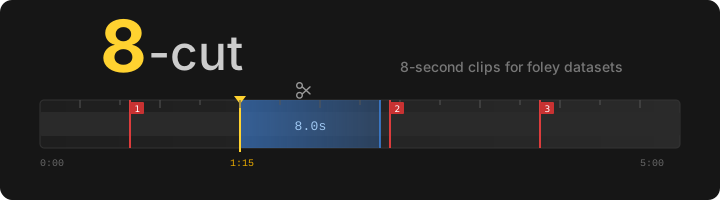

A desktop tool for cutting 8-second clips from video files, designed for building foley datasets. Includes audio classification for automated scanning and batch export.
## Overview
8-cut lets you scrub through a video, mark a cut point, and export a batch of overlapping 8-second clips with one keypress. It tracks every export in a local SQLite database so you can resume a session without duplicating work.
All clips are exactly 8 seconds — the standard length for foley sound datasets.
## Features
### Clip export
- **Frame-accurate scrubbing** — click or drag the timeline; arrow keys and J/L for frame-by-frame, Shift for 1-second steps
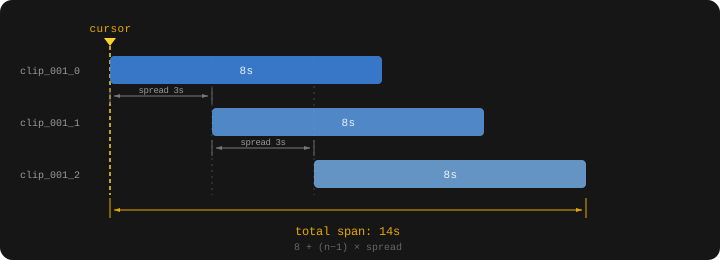
- **Batch export** — export multiple overlapping clips per cut point with configurable count and spread offset
- **Two export formats** — H.264 MP4 with lossless PCM audio, or WebP image sequence (frames + `.wav`)
- **Portrait crop** — crop to 9:16, 4:5, or 1:1 before export; click the video or crop bar to reposition
- **Random portrait/square** — optionally apply a random crop to a subset of each batch
- **Resize** — scale short side to a fixed pixel size (e.g. 512)
- **Hardware encoding** — GPU-accelerated export via NVENC, VAAPI, QSV, AMF, or VideoToolbox
- **Subject tracking** — auto-adjust crop center using YOLOv8 detection (optional)
### Audio scanning
- **Embedding models** — WAV2VEC2 (base/large), HuBERT (base/large/xlarge), BEATs
- **Train classifier** — train a gradient boosting classifier on your exported clips to find similar audio
- **Scan video** — detect regions matching your trained model with configurable threshold
- **Scan All** — batch scan every video in the playlist
- **Region fusion** — merge overlapping detections into contiguous regions
- **Hard negatives** — mark false positives to refine training
- **Model versioning** — timestamped backups with rollback support
- **Scan export** — batch export from scan results with spread and minimum duration filtering
### Scan results panel
- **Tabbed results** — one tab per model, showing start/end/score per region
- **Disable regions** — Delete/Backspace toggles regions off (greyed out, excluded from export) without removing them
- **Resize regions** — double-click Time or End cells to edit, or drag region edges directly on the timeline
- **Grey ghost** — trimmed portions of resized regions shown as grey overlay on timeline
- **Undo** — Ctrl+Z reverts the last disable, resize, drag, or negative toggle
### Organization
- **Sound annotation** — label and category fields saved to the clip database and `dataset.json`
- **Export history** — timeline markers show previously exported clips; double-click to overwrite; right-click to delete
- **Playlist** — drag-and-drop video queue with progress tracking
- **Profiles** — switch between independent marker sets (e.g. "landscape" vs "portrait")
- **Subprofiles** — lightweight export folder variants for multiple output targets
- **Review mode** — clean timeline view for navigating scan results without export clutter
## Keyboard shortcuts
| Key | Action |
|-----|--------|
| `Left` / `J` | Step back 1 frame |
| `Right` / `L` | Step forward 1 frame |
| `Shift+Left` / `Shift+J` | Step back 1 second |
| `Shift+Right` / `Shift+L` | Step forward 1 second |
| `Space` / `P` | Toggle play/pause |
| `K` | Pause and snap to cursor |
| `E` | Export |
| `M` | Jump to next marker (wraps) |
| `N` | Next file in playlist |
| `G` | Toggle cursor lock |
| `Delete` / `Backspace` | Toggle disable on selected scan regions |
| `Ctrl+Z` | Undo last scan panel action |
| `?` / `F1` | Show keyboard shortcuts |
Shortcuts are suppressed when a text field has focus.
## Requirements
- Python 3.11+
- `ffmpeg` on `PATH`
- PyQt6
- python-mpv (requires libmpv)
```
pip install -r requirements.txt
```
### Platform setup
#### Linux
```bash
# Arch
pacman -S mpv ffmpeg python
# Debian/Ubuntu
apt install libmpv-dev ffmpeg python3
# Install Python deps
pip install -r requirements.txt
```
#### Windows
```powershell
# Install ffmpeg
winget install ffmpeg
# Download mpv-2.dll from https://sourceforge.net/projects/mpv-player-windows/files/libmpv/
# Place mpv-2.dll next to main.py or on PATH
# Install Python deps
pip install -r requirements.txt
```
Or run the setup script:
```powershell
.\setup-windows.ps1
```
#### macOS
```bash
brew install mpv ffmpeg
pip install -r requirements.txt
```
### GPU encoding
Hardware encoders are auto-detected from ffmpeg. Available encoders by platform:
| Platform | Encoders |
|----------|----------|
| **Linux** | `h264_nvenc` (NVIDIA), `h264_vaapi` (AMD/Intel), `h264_qsv` (Intel) |
| **Windows** | `h264_nvenc` (NVIDIA), `h264_qsv` (Intel), `h264_amf` (AMD) |
| **macOS** | `h264_videotoolbox` |
Enable the **HW** checkbox in the export controls to use GPU encoding.
### Audio scanning dependencies
Audio scanning requires additional packages (installed via `requirements.txt`):
- `torch` and `torchaudio` — embedding model inference (CUDA recommended)
- `scikit-learn` — classifier training
- `joblib` — model persistence
Models are downloaded on first use and cached in `cache/downloads/`.
## Usage
```
python main.py
```
Drop videos onto the queue or click **+ Open Files**. Scrub to your cut point, then press **Export** (or `E`).
### Export layout
Each export creates a group subfolder containing the overlapping sub-clips:
```
output/
clip_001/
clip_001_0.mp4 # starts at cursor
clip_001_1.mp4 # starts at cursor + spread
clip_001_2.mp4 # starts at cursor + 2 * spread
clip_002/
...
```
With WebP sequence format, each sub-clip becomes a directory of frames plus a `.wav`:
```
output/
clip_001/
clip_001_0/
frame_0001.webp
frame_0002.webp
...
clip_001_0.wav
```
### Scan export layout
Scan exports create one group folder per detected area:
```
output/
clip_037/
clip_037_a1_0.mp4 # area 1, clip 0
clip_037_a1_1.mp4 # area 1, clip 1
clip_038/
clip_038_a2_0.mp4 # area 2, clip 0
...
```
### Sound annotation
Set a **Label** (e.g. "dog barking") and **Category** (Human / Animal / Vehicle / Tool / Music / Nature / Sport / Other) before exporting. These are saved to:
- `dataset.json` in the export folder — one entry per clip with `path` and `label`
- The SQLite database — label and category, for recall when you revisit a marker
Labels persist between exports so you can cut many clips of the same class without retyping.
### Overwrite and delete
- **Double-click** a timeline marker to enter overwrite mode — the next export re-encodes all clips in that group to their original paths
- **Right-click** a marker to delete it from the database
- The **Delete** button removes all clips in a group from disk, database, and `dataset.json`
## Audio scan workflow
### 1. Build a dataset
Export clips manually from several videos. Clips from the same export folder (e.g. `mp4_Intense`) become your positive training class.
### 2. Train a classifier
Click **Train** to open the training dialog:
- **Positive class** — select the export folder containing your target sounds
- **Negative class** — optional explicit negatives, or leave as "(auto only)" for automatic sampling
- **Model** — embedding model to use (HuBERT XLARGE recommended)
- **Auto-neg margin** — distance from markers to sample automatic negatives (30s default)
- **Include scan-exported clips** — whether to include previously scan-exported clips in training
The classifier trains a `HistGradientBoostingClassifier` on audio embeddings and saves to `models/`.
### 3. Scan videos
Select a trained model from the dropdown and click **Scan**. Adjust the threshold slider to control sensitivity. Detected regions appear as colored bands on the timeline and as rows in the results panel.
### 4. Review and refine
- Toggle **Review** mode for a clean timeline focused on scan results
- **Disable** false positive regions (Delete key) — they stay in the list but are excluded from export
- **Resize** regions by dragging edges on the timeline or editing times in the table
- **Mark as negative** — add false positives to the hard negative set for retraining
- **Ctrl+Z** to undo any of the above
### 5. Export results
Click **Export Scan Results** to batch export all enabled regions. The button shows the estimated clip count based on spread and minimum duration settings.
### 6. Retrain with feedback
Train again — hard negatives are automatically included. Each training run saves with a timestamp. Right-click the model dropdown to restore a previous version if results degrade.
## Database
Export history is stored in `~/.8cut.db` (SQLite). Tables:
| Table | Purpose |
|-------|---------|
| `processed` | Every exported clip with full encoding settings |
| `scan_results` | Audio scan detections per video/model |
| `hard_negatives` | Timestamps marked as false positives for training |
| `hidden_files` | Playlist files hidden by the user |
The database auto-migrates when new columns are added.
## File locations
| Path | Contents |
|------|----------|
| `~/.8cut.db` | SQLite database |
| `models/` | Trained classifier models (`.joblib`) |
| `cache/w2v/` | Embedding cache (`.npz`, keyed by video hash) |
| `cache/downloads/` | Downloaded pretrained models |
## Testing
```
pytest tests/ -v
```
46 unit tests covering path builders, ffmpeg command generation, time formatting, database operations, group queries, profile isolation, and annotation handling.
## License
[GNU General Public License v3.0](https://github.com/ethanfel/8-cut/blob/master/LICENSE)