



---
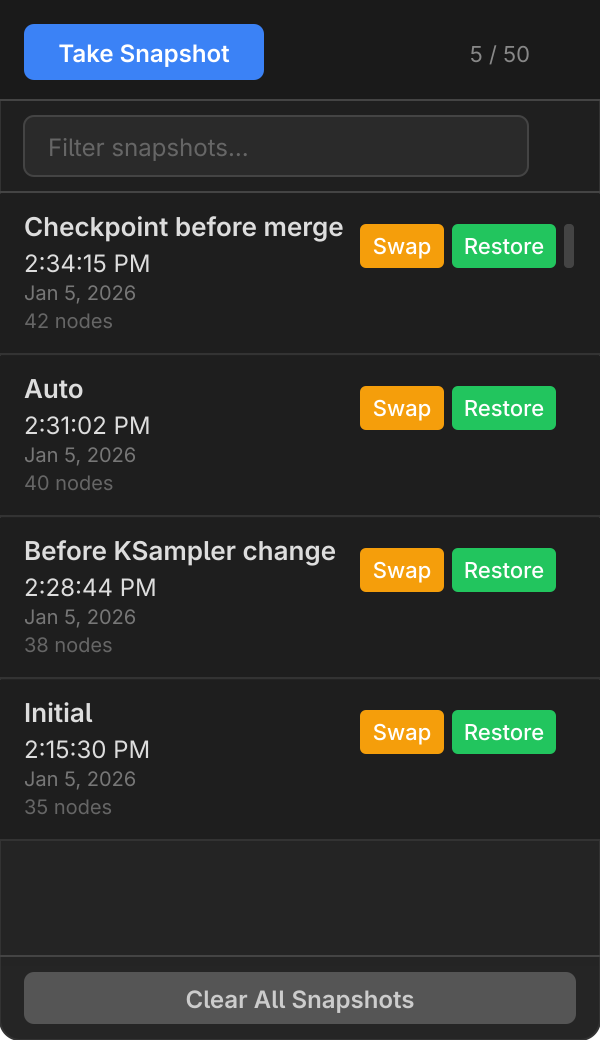
**Workflow Snapshot Manager** automatically captures your ComfyUI workflow as you edit. Browse, name, search, and restore any previous version from a sidebar panel — all stored locally in your browser's IndexedDB.
## Features
- **Auto-capture** — Snapshots are saved automatically as you edit, with configurable debounce
- **Custom naming** — Name your snapshots when taking them manually ("Before merge", "Working v2", etc.)
- **Search & filter** — Quickly find snapshots by name with the filter bar
- **Restore or Swap** — Open a snapshot as a new workflow, or replace the current one in-place
- **Per-workflow storage** — Each workflow has its own independent snapshot history
- **Theme-aware UI** — Adapts to light and dark ComfyUI themes
- **Toast notifications** — Visual feedback for save, restore, and error operations
- **Lock/pin snapshots** — Protect important snapshots from auto-pruning and "Clear All" with a single click
- **Concurrency-safe** — Lock guard prevents double-click issues during restore
- **Zero backend** — Pure frontend extension, no server dependencies
## Installation
### ComfyUI Manager (Recommended)
Search for **Workflow Snapshot Manager** in [ComfyUI Manager](https://github.com/ltdrdata/ComfyUI-Manager) and click Install.
### Git Clone
```bash
cd ComfyUI/custom_nodes
git clone https://github.com/ethanfel/Comfyui-Workflow-Snapshot-Manager.git
```
Restart ComfyUI after installing.
## Usage
### 1. Open the Sidebar
Click the **clock icon** ( ) in the ComfyUI sidebar to open the Snapshots panel.
### 2. Snapshots are Captured Automatically
As you edit your workflow, snapshots are saved automatically after a configurable delay (default: 3 seconds). An initial snapshot is also captured when the workflow loads.
### 3. Take a Named Snapshot
Click **Take Snapshot** to manually save the current state. A prompt lets you enter a custom name — great for checkpoints like "Before refactor" or "Working config".
### 4. Search & Filter
Use the filter bar at the top of the panel to search snapshots by name. The clear button (**×**) resets the filter.
### 5. Restore or Swap
Each snapshot has action buttons:
| Button | Action |
|--------|--------|
| **Lock** | Toggles lock protection (padlock icon) |
| **Swap** | Replaces the current workflow in-place (same tab) |
| **Restore** | Opens the snapshot as a new workflow |
### 6. Lock / Pin Snapshots
Click the **padlock icon** on any snapshot to lock it. Locked snapshots are protected from:
- **Auto-pruning** — When the snapshot count exceeds the max, only unlocked snapshots are pruned
- **Clear All** — Locked snapshots survive bulk deletion (the toast reports how many were kept)
To unlock, click the padlock again. Deleting a locked snapshot individually is still possible but requires confirmation.
### 7. Delete & Clear
- Click **×** on any snapshot to delete it individually (locked snapshots prompt for confirmation)
- Click **Clear All Snapshots** in the footer to remove all unlocked snapshots for the current workflow (locked snapshots are preserved)
## Settings
All settings are available in **ComfyUI Settings > Snapshot Manager > Capture Settings**:
| Setting | Type | Default | Description |
|---------|------|---------|-------------|
| **Auto-capture on edit** | Toggle | `On` | Automatically save snapshots when the workflow changes |
| **Capture delay** | Slider | `3s` | Seconds to wait after the last edit before auto-capturing (1–30s) |
| **Max snapshots per workflow** | Slider | `50` | Maximum number of unlocked snapshots kept per workflow (5–200). Oldest unlocked are pruned automatically; locked snapshots are never pruned |
| **Capture on workflow load** | Toggle | `On` | Save an "Initial" snapshot when a workflow is first loaded |
## Architecture
) in the ComfyUI sidebar to open the Snapshots panel.
### 2. Snapshots are Captured Automatically
As you edit your workflow, snapshots are saved automatically after a configurable delay (default: 3 seconds). An initial snapshot is also captured when the workflow loads.
### 3. Take a Named Snapshot
Click **Take Snapshot** to manually save the current state. A prompt lets you enter a custom name — great for checkpoints like "Before refactor" or "Working config".
### 4. Search & Filter
Use the filter bar at the top of the panel to search snapshots by name. The clear button (**×**) resets the filter.
### 5. Restore or Swap
Each snapshot has action buttons:
| Button | Action |
|--------|--------|
| **Lock** | Toggles lock protection (padlock icon) |
| **Swap** | Replaces the current workflow in-place (same tab) |
| **Restore** | Opens the snapshot as a new workflow |
### 6. Lock / Pin Snapshots
Click the **padlock icon** on any snapshot to lock it. Locked snapshots are protected from:
- **Auto-pruning** — When the snapshot count exceeds the max, only unlocked snapshots are pruned
- **Clear All** — Locked snapshots survive bulk deletion (the toast reports how many were kept)
To unlock, click the padlock again. Deleting a locked snapshot individually is still possible but requires confirmation.
### 7. Delete & Clear
- Click **×** on any snapshot to delete it individually (locked snapshots prompt for confirmation)
- Click **Clear All Snapshots** in the footer to remove all unlocked snapshots for the current workflow (locked snapshots are preserved)
## Settings
All settings are available in **ComfyUI Settings > Snapshot Manager > Capture Settings**:
| Setting | Type | Default | Description |
|---------|------|---------|-------------|
| **Auto-capture on edit** | Toggle | `On` | Automatically save snapshots when the workflow changes |
| **Capture delay** | Slider | `3s` | Seconds to wait after the last edit before auto-capturing (1–30s) |
| **Max snapshots per workflow** | Slider | `50` | Maximum number of unlocked snapshots kept per workflow (5–200). Oldest unlocked are pruned automatically; locked snapshots are never pruned |
| **Capture on workflow load** | Toggle | `On` | Save an "Initial" snapshot when a workflow is first loaded |
## Architecture
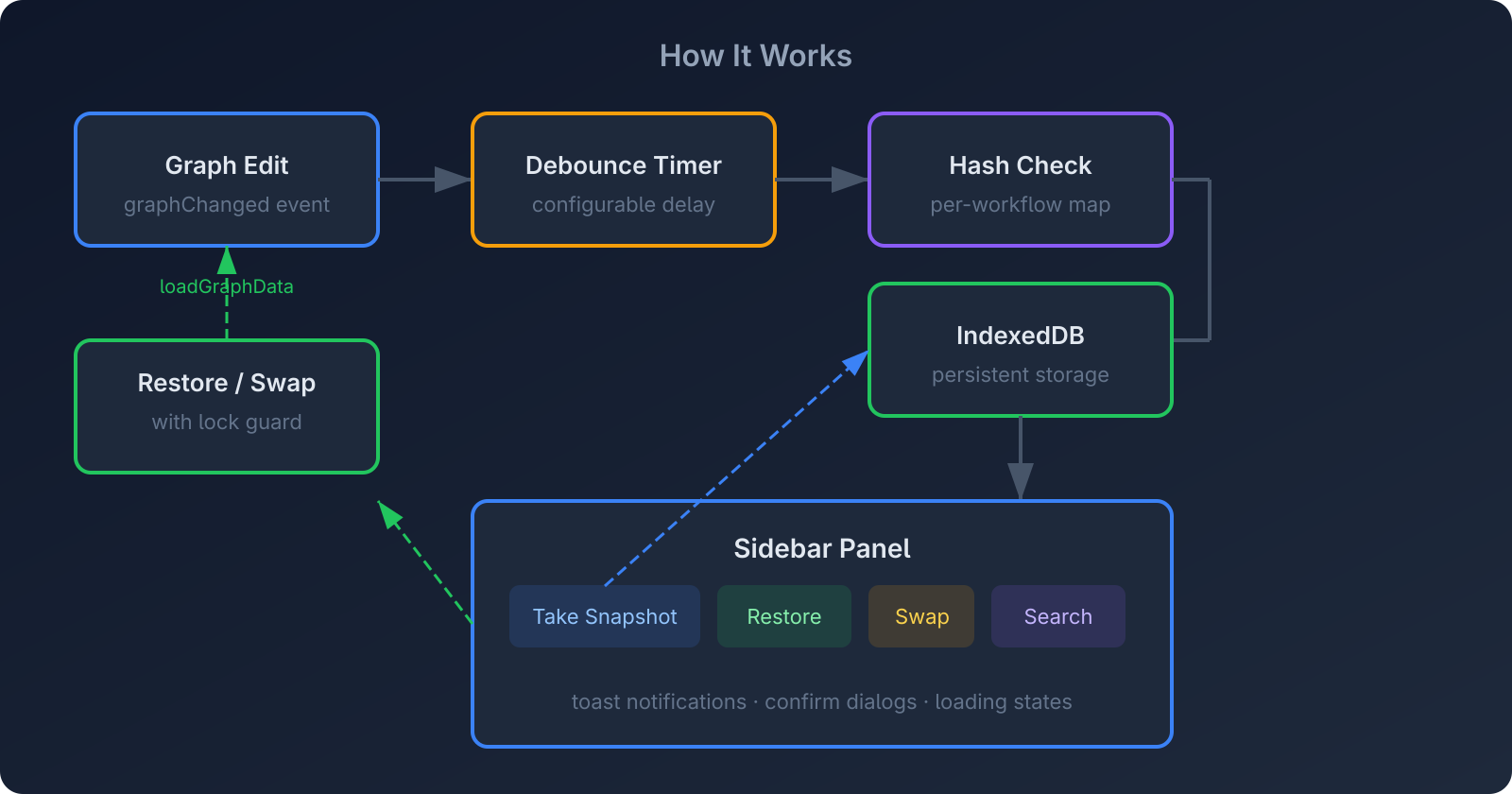
**Data flow:**
1. **Graph edits** trigger a `graphChanged` event
2. A **debounce timer** prevents excessive writes
3. The workflow is serialized and **hash-checked** against the last capture (per-workflow) to avoid duplicates
4. New snapshots are written to **IndexedDB** (browser-local, persistent)
5. The **sidebar panel** reads from IndexedDB and renders the snapshot list
6. **Restore/Swap** loads graph data back into ComfyUI with a lock guard to prevent concurrent operations
**Storage:** All data stays in your browser's IndexedDB — nothing is sent to any server. Snapshots persist across browser sessions and ComfyUI restarts.
## FAQ
**Where are snapshots stored?**
In your browser's IndexedDB under the database `ComfySnapshotManager`. They persist across sessions but are browser-local (not synced between devices).
**Will this slow down ComfyUI?**
No. Snapshots are captured asynchronously after a debounce delay. The hash check prevents redundant writes.
**What happens if I switch workflows?**
Each workflow has its own snapshot history. Switching workflows cancels any pending captures and shows the correct snapshot list.
**Can I use this with ComfyUI Manager?**
Yes — install via ComfyUI Manager or clone the repo into `custom_nodes/`.
## License
[MIT](LICENSE)